> ## Documentation Index
> Fetch the complete documentation index at: https://flipt-oci-manifest-version.mintlify.site/llms.txt
> Use this file to discover all available pages before exploring further.
# Storage
> This document describes how to configure Flipt's storage backend mechanisms.
## Relational Database
Flipt supports the following relational databases:
* [SQLite](https://www.sqlite.org/index.html)
* [PostgreSQL](https://www.postgresql.org/)
* [CockroachDB](https://www.cockroachlabs.com/)
* [MySQL](https://dev.mysql.com/)
* [LibSQL/Turso](https://turso.tech/)
SQLite is enabled by default for simplicity, however, you should use PostgreSQL, MySQL, or CockroachDB if you intend to run multiple copies of Flipt in a high availability configuration.
The database connection can be configured as follows:
### SQLite
The default location of the SQLite database is `/var/opt/flipt/flipt.db` on
Linux and `~/Library/Application Support/flipt/flipt.db` on macOS.
```yaml
db:
# file: informs flipt to use SQLite
url: file:/var/opt/flipt/flipt.db
```
### LibSQL
See our [libSQL Example](https://github.com/flipt-io/flipt/blob/main/examples/database/libsql) for a working example of how to use libSQL with Flipt.
#### Local
```yaml
db:
# libsql: informs flipt to use libSQL
url: libsql://file:/var/opt/flipt/flipt.db
```
#### Remote
If using [Turso](https://turso.tech/) you must use a [database auth
token](https://docs.turso.tech/reference/turso-cli#creating-a-database-token)
to access the database.
```yaml
db: # http(s): informs flipt to use libSQL over HTTP(s) via sqld/Turso
url: https://db-[your-github-name].turso.io?authToken=[your-auth-token]
```
### PostgreSQL
```yaml
db:
url: postgres://postgres@localhost:5432/flipt?sslmode=disable
```
### CockroachDB
```yaml
db:
url: cockroach://root@localhost:26257/flipt?sslmode=disable
```
### MySQL
```yaml
db:
url: mysql://mysql@localhost:3306/flipt
```
### Migrations
From time to time the Flipt database must be updated with new schema. To
accomplish this, Flipt includes a `migrate` command that will run any pending
database migrations for you.
By default Flipt will run your application data migrations. You can run migrations on your [analytical](/configuration/analytics) databases by specifying the `--database=analytics` flag to the migrate command.
If Flipt is started and there are pending migrations, you will see the following
error in the console:
```yaml
migrations pending, please backup your database and run `flipt migrate`
```
If it's your first run of Flipt, all migrations will automatically be run
before starting the Flipt server.
You should backup your database before running `flipt migrate` to ensure that
no data is lost if an error occurs during migration.
If running Flipt via Docker, you can run the migrations in a separate container
before starting Flipt by running:
```yaml
docker run -it -v $HOME/flipt:/var/opt/flipt flipt/flipt:latest /bin/sh -c './flipt migrate'
```
`$HOME/flipt` is just used as an example, you can use any directory you would
like on the host.
If you don't use mounted volumes to persist your data, your data will be lost
when the migration container exits, having no effect on your Flipt instance!
## Declarative
The following backend types are designed to support declarative management of feature flag state via a well-known file format.
In particular, they're designed to support GitOps practices with minimal external dependencies.
The current four declarative backend types include:
* [Local](#local-2)
* [Git](#git)
* [Object](#object)
* [OCI](#oci)
The `local` backend has been primarily developed to support a local
development experience, whereas, the `git`, `object` and `oci` backends are
intended for production use.
### Read Only Mode
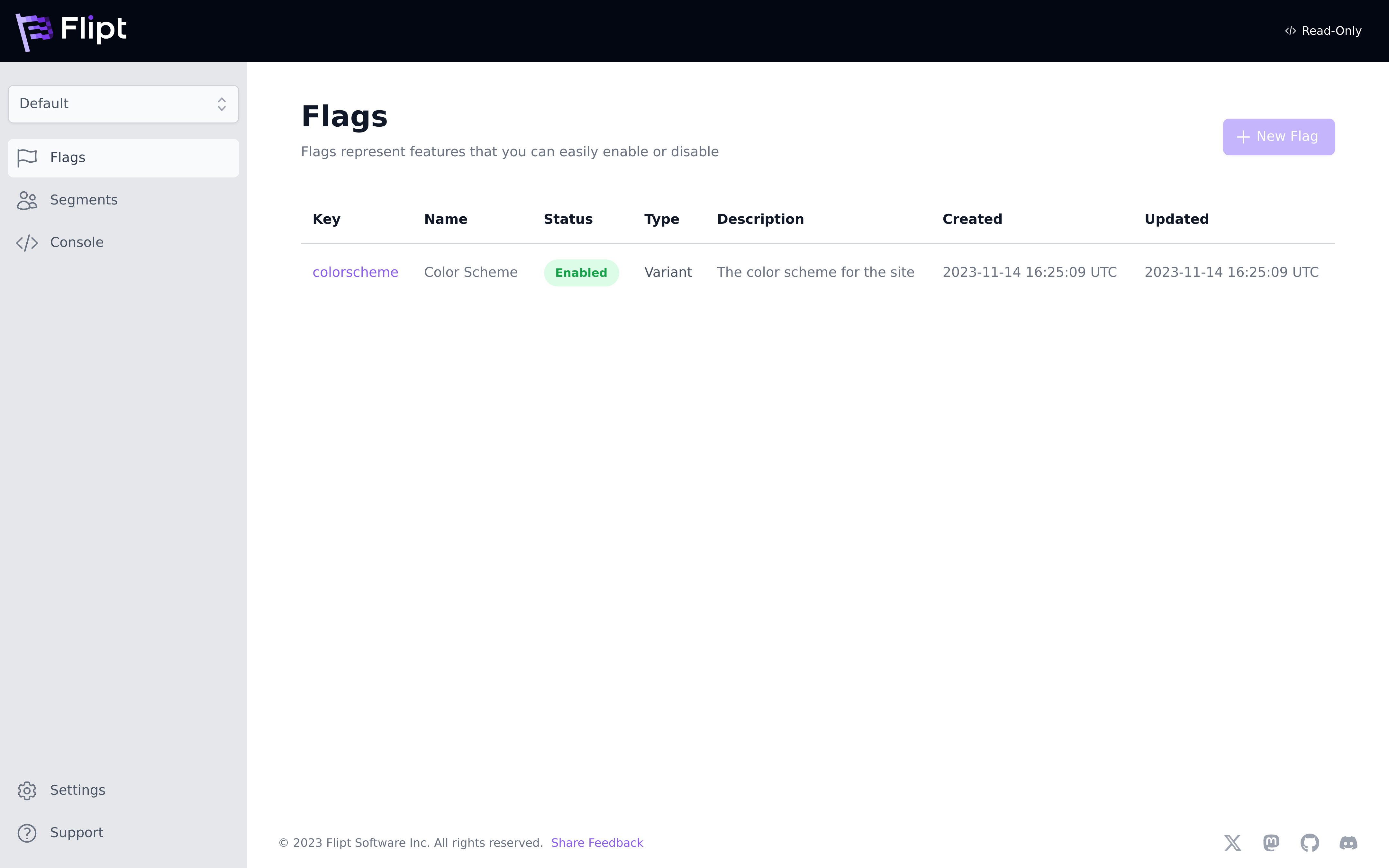
Once enabled, all declarative backends put the Flipt API and UI into a `read-only` mode that prevents Flipt from writing to the backend. This is useful for production environments where you want to ensure that flag state is only managed via the configured backend.
You can also put Flipt into `read-only` mode by setting the
`FLIPT_STORAGE_READ_ONLY` environment variable to `true`, or setting
`storage.read_only` to `true` in your configuration.
### Local
The purpose of this backend type is to support serving Flipt flag state directly from your local filesystem.
You can simply specify a relative or absolute directory in order to start a local Flipt instance and serve flag state.
This is particularly useful for local development and validation of flag state changes.
Flipt will periodically rebuild its state from the local disk every 10 seconds.
```bash
FLIPT_STORAGE_TYPE="local"
FLIPT_STORAGE_LOCAL_PATH="."
```
```yaml
storage:
type: local
local:
path: "."
```
### Git
The `git` type backend is used to configure a target Git repository and Git reference to source feature flag state.
The configuration contains fields for addressing the repository, configuring the target reference as well as adding authentication credentials.
Once a target repository and reference are configured, Flipt will poll the source repository on a periodic cadence.
This cadence is also configurable and defaults to 30 seconds.
Flipt will follow the configured reference (e.g. branch name) and keep up to date with new changes.
```bash
FLIPT_STORAGE_TYPE="git"
FLIPT_STORAGE_GIT_REPOSITORY="https://github.com/predictab.le/config.git"
FLIPT_STORAGE_GIT_REF="main"
FLIPT_STORAGE_GIT_POLL_INTERVAL="30s"
# for private repository access
FLIPT_STORAGE_GIT_AUTHENTICATION_BASIC_USERNAME=...
FLIPT_STORAGE_GIT_AUTHENTICATION_BASIC_PASSWORD=...
```
```yaml
storage:
type: git
git:
repository: "https://github.com/predictab.le/config.git"
ref: "main"
poll_interval: "30s"
authentication:
basic:
username: ...
password: ...
token:
access_token: ...
```
#### Authentication
Authentication enables the ability to leverage private Git repositories as flag state backends.
The `git` type backend supports both `basic`, `token` and `ssh` based authentication schemes.
**GitHub**
When using GitHub and their [PATs (Personal Access
Tokens)](https://docs.github.com/en/authentication/keeping-your-account-and-data-secure/managing-your-personal-access-tokens),
`basic` authentication should be used. GitHub expects you to supply a valid
`username` and provide your PAT as the `password` parameter.
```yaml
storage:
type: git
git:
repository: "https://github.com/predictab.le/config.git"
ref: "main"
poll_interval: "30s"
authentication:
basic:
username: < username >
password: < github-personal-access-token >
```
**SSH**
In order to configure Flipt with SSH, you will need to generate an SSH key-pair and configure your repository provider with the public key.
GitHub has some excellent documentation regarding how to generate and install you credentials [here](https://docs.github.com/en/authentication/connecting-to-github-with-ssh).
Once you have your private key credentials you will need to configure Flipt to use them.
This can be done via the `storage.git.authentication.ssh` configuration section:
```yaml
storage:
type: git
git:
repository: git@github.com:flipt-io/some-private-repo.git
authentication:
ssh:
password: flipt
private_key_path: private-key.pem
# private_key_bytes: # alternatively pass the raw bytes inline
insecure_ignore_host_key: true
```
`insecure_ignore_host_key` is not encouraged for production use, and is
`false` by default. Instead, you are advised to put the key fingerprint in the
known hosts file where you are running Flipt. For example, for GitHub you can
do `ssh-keyscan github.com >> ~/.ssh/known_hosts` on the Flipt host.
See our [GitOps Guide](/guides/get-going-with-gitops) for an example of how to set up a GitHub repository as a flag state backend.
### Object
The object storage type supports using a hosted object storage service as the source of truth for Flipt state configuration.
Currently, Flipt supports the following object store providers:
* [AWS S3](https://aws.amazon.com/s3/)
* [Azure Blob Storage](https://azure.microsoft.com/en-us/services/storage/blobs/)
* [Google Cloud Storage](https://cloud.google.com/storage)
#### Contents
The contents of a target object storage bucket must contain Flipt state configuration files.
As with the `git` and `local` backend types, the same rules apply with regard to how Flipt will locate feature flag state in your target bucket.
See the section below on [Flag State Configuration](#flag-state-configuration) for how Flipt decides which files in a target are considered for serving flag state.
With the object storage backend, Flipt will respect a file at the root of the target with the name `.flipt.yml` to serve as an index for locating flag state configuration in the bucket.
It will also use the same default strategy when the index isn't supplied (e.g. file name `features.yml` or `*.features.yml`).
#### Amazon S3
The AWS S3 backend can be configured to serve state from a single bucket from a target S3-compatible API. This means that both AWS S3 and open-source alternatives such as [Minio](https://github.com/minio/minio) can be used.
The following is an example of how to configure Flipt to leverage this backend type:
```bash
FLIPT_STORAGE_TYPE="object"
FLIPT_STORAGE_OBJECT_TYPE="s3"
FLIPT_STORAGE_OBJECT_S3_REGION="us-east-1"
FLIPT_STORAGE_OBJECT_S3_BUCKET="flipt_feature_flags"
FLIPT_STORAGE_OBJECT_S3_POLL_INTERVAL="1m"
# optional: bucket prefix for locating flag state files
FLIPT_STORAGE_OBJECT_S3_PREFIX="production"
# optional: for non-AWS hosted S3
FLIPT_STORAGE_OBJECT_S3_ENDPOINT=http://localhost:9009
```
```yaml
storage:
type: object
object:
type: s3
s3:
region: us-east-1
bucket: flipt_feature_flags
poll_interval: "30s"
# optional: bucket prefix for locating flag state files
prefix: production
# optional: for non-AWS hosted S3
endpoint: http://localhost:9009
```
In addition to these Flipt configuration parameters, valid credentials will
also be required for Flipt to authenticate with the target object store.
These should be provided as environment variables to the Flipt server process:
```bash
AWS_ACCESS_KEY_ID=...
AWS_SECRET_ACCESS_KEY=...
```
#### Azure Blob Storage
The Azure Blob Storage backend can be configured to serve state from a single container from a target Azure Blob Storage account.
The following is an example of how to configure Flipt to leverage this backend type:
```bash
FLIPT_STORAGE_TYPE="object"
FLIPT_STORAGE_OBJECT_TYPE="azblob"
FLIPT_STORAGE_OBJECT_AZBLOB_CONTAINER="flipt-feature-flags"
FLIPT_STORAGE_OBJECT_AZBLOB_POLL_INTERVAL="1m"
# optional: for customizing Azure blob storage endpoint
FLIPT_STORAGE_OBJECT_AZBLOB_ENDPOINT=http://localhost:10000
```
```yaml
storage:
type: object
object:
type: azblob
azblob:
container: flipt-feature-flags
# optional: for customizing Azure blob storage endpoint
endpoint: https//devaccount.blob.core.windows.net
poll_interval: "30s"
```
In addition to these Flipt configuration parameters, valid credentials will
also be required for Flipt to authenticate with the target object store.
These should be provided as environment variables to the Flipt server process. There are 2 options supported for authentication:
* Using [Azure Credentials](https://learn.microsoft.com/en-us/azure/developer/go/azure-sdk-authentication?tabs=bash#2-authenticate-with-azure)
```bash
AZURE_CLIENT_ID=... # application ID of an Azure service principal
AZURE_TENANT_ID=... # ID of the application's Microsoft Entra tenant
AZURE_CLIENT_SECRET=... # password of the Azure service principal
```
* Using Azure Blob [Storage Account Keys](https://learn.microsoft.com/en-us/azure/storage/common/storage-account-keys-manage?tabs=azure-portal)
```bash
AZURE_STORAGE_ACCOUNT=...
AZURE_STORAGE_KEY=...
```
#### Google Cloud Storage
The Google Cloud Storage backend can be configured to serve state from a single bucket from a target Google Cloud Storage account.
The following is an example of how to configure Flipt to leverage this backend type:
```bash
FLIPT_STORAGE_TYPE="object"
FLIPT_STORAGE_OBJECT_TYPE="googlecloud"
FLIPT_STORAGE_OBJECT_GOOGLECLOUD_BUCKET="flipt-feature-flags"
FLIPT_STORAGE_OBJECT_GOOGLECLOUD_POLL_INTERVAL="1m"
# optional: bucket prefix for locating flag state files
FLIPT_STORAGE_OBJECT_GOOGLECLOUD_PREFIX="production"
```
```yaml
storage:
type: object
object:
type: googlecloud
googlecloud:
bucket: flipt-feature-flags
poll_interval: "30s"
```
In addition to these Flipt configuration parameters, valid credentials will
also be required for Flipt to authenticate with the target object store.
If running in a Google Cloud environment, you can use [Application Default Credentials](https://cloud.google.com/docs/authentication/production) to authenticate with Google Cloud Storage.
Alternatively, you can use a [Service Account](https://cloud.google.com/iam/docs/creating-managing-service-accounts) to authenticate with Google Cloud Storage and provide the service account key file to Flipt.
This should be provided as an environment variable to the Flipt server process:
```bash
GOOGLE_APPLICATION_CREDENTIALS=... # path to a service account key file
```
### OCI
Since `v1.31.0`, Flipt supports using any [OCI](https://opencontainers.org/) compatible registry as a declarative backend source.
Flipt has its own custom OCI manifest format (we call them `bundles`), which can be built and managed using the [Flipt CLI](/cli/commands/bundle).
```bash
FLIPT_STORAGE_TYPE="oci"
FLIPT_STORAGE_OCI_REPOSITORY="some.oci.registry/repository/image:tag"
FLIPT_STORAGE_OCI_POLL_INTERVAL="30s"
# authentication credentials
FLIPT_STORAGE_OCI_AUTHENTICATION_USERNAME="username"
FLIPT_STORAGE_OCI_AUTHENTICATION_PASSWORD="password"
# location used for storing local bundles
FLIPT_STORAGE_OCI_BUNDLES_DIRECTORY="/flipt/bundles"
FLIPT_STORAGE_OCI_MANIFEST_VERSION="1.1"
```
```yaml
storage:
type: "oci"
oci:
repository: "some.oci.registry/repository/image:tag"
poll_interval: "30s"
authentication:
username: "username"
password: "password"
bundles_directory: "/flipt/bundles"
manifest_version: "1.1"
```
Certain OCI registries may require setting the OCI manifest version to something other than the default (`1.1`) to work correctly.
In this case, you can set the `FLIPT_STORAGE_OCI_MANIFEST_VERSION` environment variable or `storage.oci.manifest_version` configuration property to the desired version (e.g. `1.0`).
See [this issue](https://github.com/flipt-io/flipt/issues/2907) for more information.
### Flag State Configuration
Each of Flipt's filesystem backends expects you to represent your feature flag configuration via a set of YAML files.
These files declaratively define what flags, segments, variants, etc. exist and in what configuration.
#### Locating Flag State
Flipt's filesystem backends allow you to define feature flags alongside other configurations in a shared directory, repository, or object storage bucket.
Flipt uses a naming scheme to index which files are flag state files. By default, Flipt will look for the following filename patterns to attempt to parse as Flipt state:
* `**/features.yaml`
* `**/features.yml`
* `**/*.features.yaml`
* `**/*.features.yml`
Any file named `features.yaml`, `features.yml`, or with either extension `.features.yaml` or `.features.yml` is considered recursively from the root of your target.
If this naming convention doesn't work for you, it can be overridden by creating a file named `.flipt.yml` in the root of your target directory tree. This file will be used to instruct Flipt on how to index your directory tree and find flag state files:
```yaml
version: "1.0"
include:
- "**/features.yaml"
- "**/features.yml"
- "**/*.features.yaml"
- "**/*.features.yml"
exclude: []
```
The index file contains two lists `include` and `exclude`. These can contain specific paths or glob-matching patterns.
The indexing process first matches the `include` section and then filters that are set by the `exclude` section.
#### Defining Flag State
Flipt flag state file format has been taken directly from Flipt's existing
[import and export](/operations/import-export) flag state format.
You can run `flipt export` on your existing Flipt instance, and then
add/commit the result to a directory, object storage, or Git repository to get started.
This can be used to migrate from a relational database-backed instance of Flipt to a filesystem-backed deployment with ease.
```yaml features.yaml
namespace: backend
flags:
- key: awesomeNewFeature
name: Awesome New Feature
enabled: true
variants:
- key: enabled
name: Enabled
- key: disabled
name: Disabled
rules:
- segment: internal-users
distributions:
- variant: enabled
rollout: 100
- segment: all-users
distributions:
- variant: enabled
rollout: 20
- variant: disabled
rollout: 80
segments:
- key: internal-users
name: Internal Users
constraints:
- type: STRING_COMPARISON_TYPE
property: organization
operator: eq
value: internal
match_type: ALL_MATCH_TYPE
- key: all-users
name: All Users
match_type: ALL_MATCH_TYPE
```
Each file identified for use by Flipt represents the contents of a single namespace.
Multiple namespaces can be defined across multiple files.
You can organize these files however you like in your target directory.
By defining different namespaces in different directories, you can leverage
features such as GitHub's Codeowners. This gives you authorization mechanisms
for managing contributions to Flipt state.
The file format currently consists of four top-level keys:
```yaml
version: "1.0" # a version for this file format
namespace: default # string identifying the resources collective namespace
flags: [] # [Flag] list of Flag definitions
segments: [] # [Segment] list of Segment definitions
```
## Caching
Flipt supports both in-memory cache as well as [Redis](https://redis.io/) to enable faster reads and
evaluations. Enabling caching has been shown to speed up read performance by
several orders of magnitude.
Enabling in-memory caching when running more than one instance of Flipt isn't
advised as it may lead to unpredictable results. It's recommended to use Redis
instead if you are running more than one instance of Flipt.
Caching works as follows:
* All flag reads and evaluation requests go through the cache
* Flag cache entries are purged whenever a write to a flag or its variants
occur or the TTL expires
* Evaluation cache entries are purged after the TTL expires only
* A cache miss will fetch the item from the database and add the item to the
cache for the next read
* A cache hit will simply return the item from the cache, not interacting with
the database
See the [Cache](/configuration/overview#cache) section for how to configure caching.
### Expiration/Eviction
You can also configure an optional duration at which items in the cache are
marked as expired.
For example, if you set the cache TTL to `5m`, items that have been in the cache
for longer than 5 minutes will be marked as expired, meaning the next read for
that item will hit the database.
Setting an eviction interval (in-memory cache only) will automatically remove
expired items from your cache at a defined period.
The combination of cache expiration and eviction can help lessen the amount of
memory your cache uses, as infrequently accessed items will be removed over
time.
To tune the expiration and eviction interval of the cache set the following in
your configuration:
```yaml
cache:
enabled: true
backend: memory
ttl: 5m # items older than 5 minutes will be marked as expired
memory:
eviction_interval: 2m # expired items will be evicted from the cache every 2 minutes
```